
This article details how loan officers and processors manage Borrower Needs directly within the LendingPad LOS, allowing for seamless communication and file management.
Within the loan, navigate to the Borrower Needs screen to administer and monitor the Borrower Needs assigned to the loan.
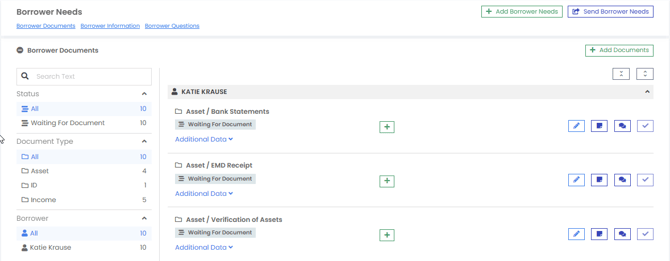
Adding Borrower Needs
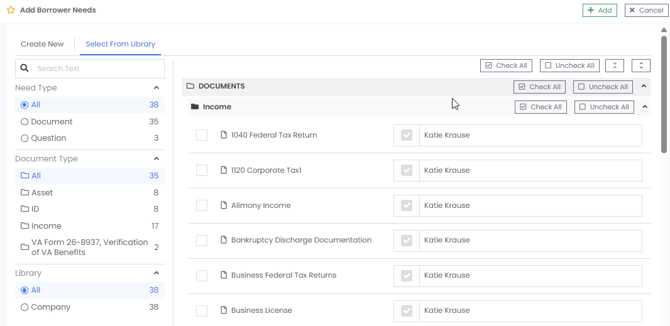
Click the Add Borrower Needs button to request additional documents or custom answers directly from the loan file. Within the Add Borrower Needs sub-screen, users have two options:
- Select from Library: Choose pre-configured needs by checking the applicable boxes and assigning them to the appropriate borrower(s).
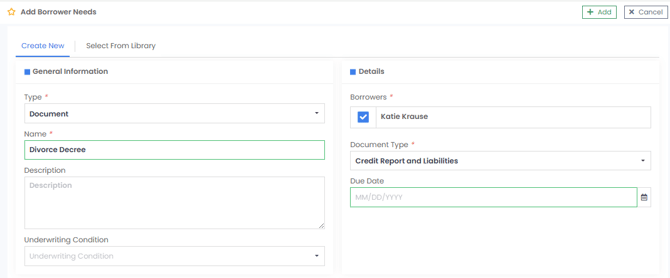
- Create New: Build a custom need on the fly by selecting the Type (Document or Question), entering a Name (visible to the applicant), and assigning it to the borrower(s). Additional required fields will appear based on the selected type.
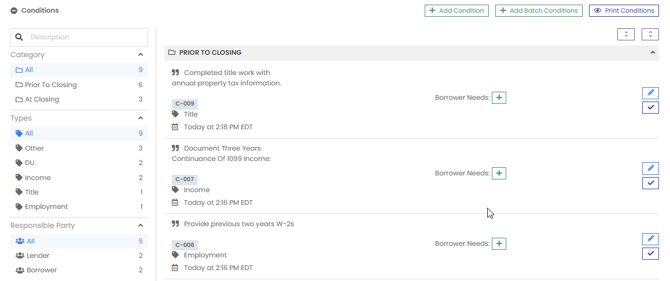
- From UW/Conditions: Users can also create a new borrower need directly in the UW/Condition screen. Selecting the add icon for any condition on the loan will open the sub-screen to add a new borrower need, which will automatically be tied to the selected condition. Once linked, a status bar will appear on the condition to signify whether the Borrower Need has been approved.
Tip: Assigning a need to multiple applicants allows all selected borrowers to upload documents. Consider whether you need a single copy for the loan file or individual versions from each borrower before assigning.
- If a borrower need is attached to a condition and the need is not approved the condition cannot be cleared. Users may disconnect the need from the condition in the UW conditions section as well as the needs section.
- The status bar may be clicked within the UW conditions section to manage the borrower need directly from the conditions section for ease of navigation.
- EXERCISE CARE WHEN DELETING DOCUMENTS FROM THE DOCUMENTS MANAGER SECTION. A DELETED DOCUMENT ATTACHED TO A BORROWER NEED AND OR CONDITION REMOVES THE ABILITY TO EDIT THE NEED OR CONDITION. TO DOCUMENT WILL STILL BE ATTACHED TO THE NEED, CLICK ON THE THUMBNAIL ICON AND THEN USERS MAY DOWNLOAD TO THEIR COMPUTER AND RE-UPLOAD IF RECOVERY OF A DELETED DOCUMENT IS NEEDED.
Once new Borrower Needs are added, the need will automatically appear in the Borrowers needs list. Optionally, the user may select the Send Borrower Needs button to send an updated Email or SMS to borrower(s) to let them know that additional needs have been added. 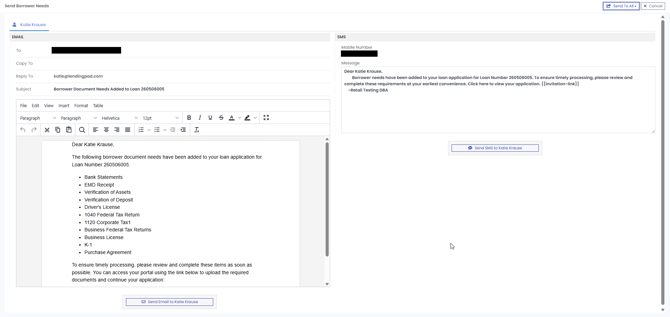
Managing Document Requests
In the Borrower Documents section, LOS users can generate and send tailored document requests directly to the borrower. Once a need is triggered, users can efficiently manage the lifecycle of that request:
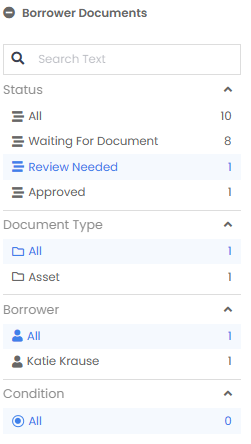
- Filtering & Navigation: Use the navigation panel to filter Borrower Documents by Status, Document Type, Borrower, or Condition to quickly locate needs that are awaiting review.
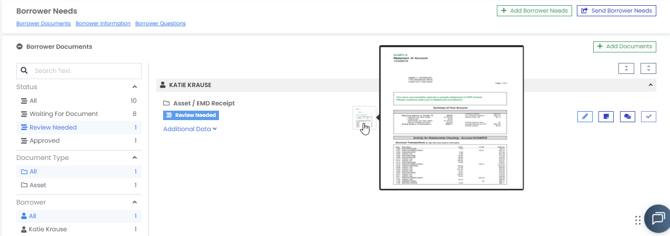
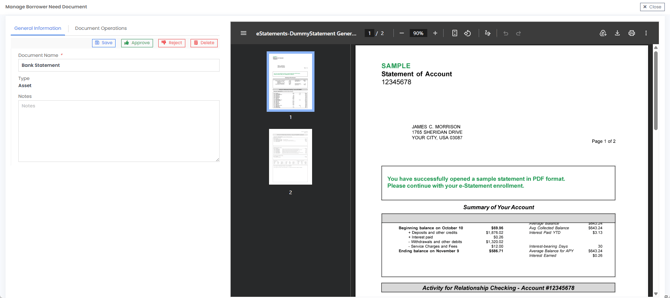
- Reviewing Documents: Hover over document thumbnails for a quick preview, or click the thumbnail (or edit icon) for a detailed review.
Users can edit the Document Name to align with operational standards and add notes that will carry over to the Document Manager upon acceptance.
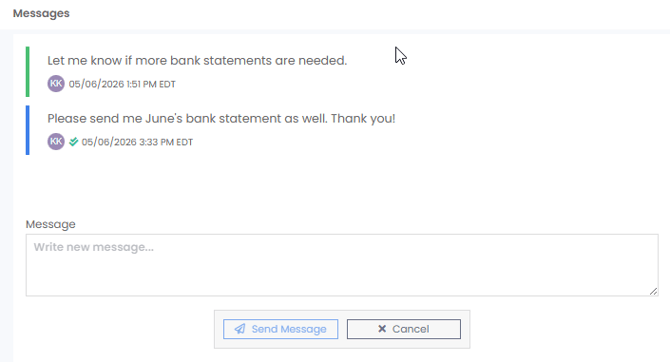
- Communication: Users can communicate with borrowers regarding specific items using the built-in messaging feature on each document need, ensuring any unclear requirements are quickly addressed. Select the message icon to view or write messages to the applicant.
- Approval & Rejection: When a borrower uploads a document, LOS users review the file to make a decision.
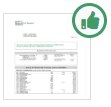
- Approve: Approved documents are flagged with a green thumbs-up icon.
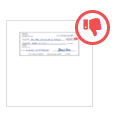
- Reject: Rejected documents are flagged with a red thumbs-down icon. The user must enter a Rejection Reason, which displays to the borrower so they can correct and resubmit the documentation.

- Final Approval: Once the borrower has fully satisfied the required information, the LOS user can grant final approval on the Borrower Need. All approved documents associated with that need will then automatically push into the Document Manager for the loan file.

Managing Custom Questions
In addition to documents, LOS users can trigger custom questions to obtain more granular information than what is provided in the standard application. Users can manage these questions and review the borrower's submitted answers directly within the LOS to ensure all necessary details are captured for processing and underwriting.

Borrowers may only answer questions prior to application submission in the POS; as such, LOS users are restricted from adding additional questions to the Borrower Needs after POS submission.